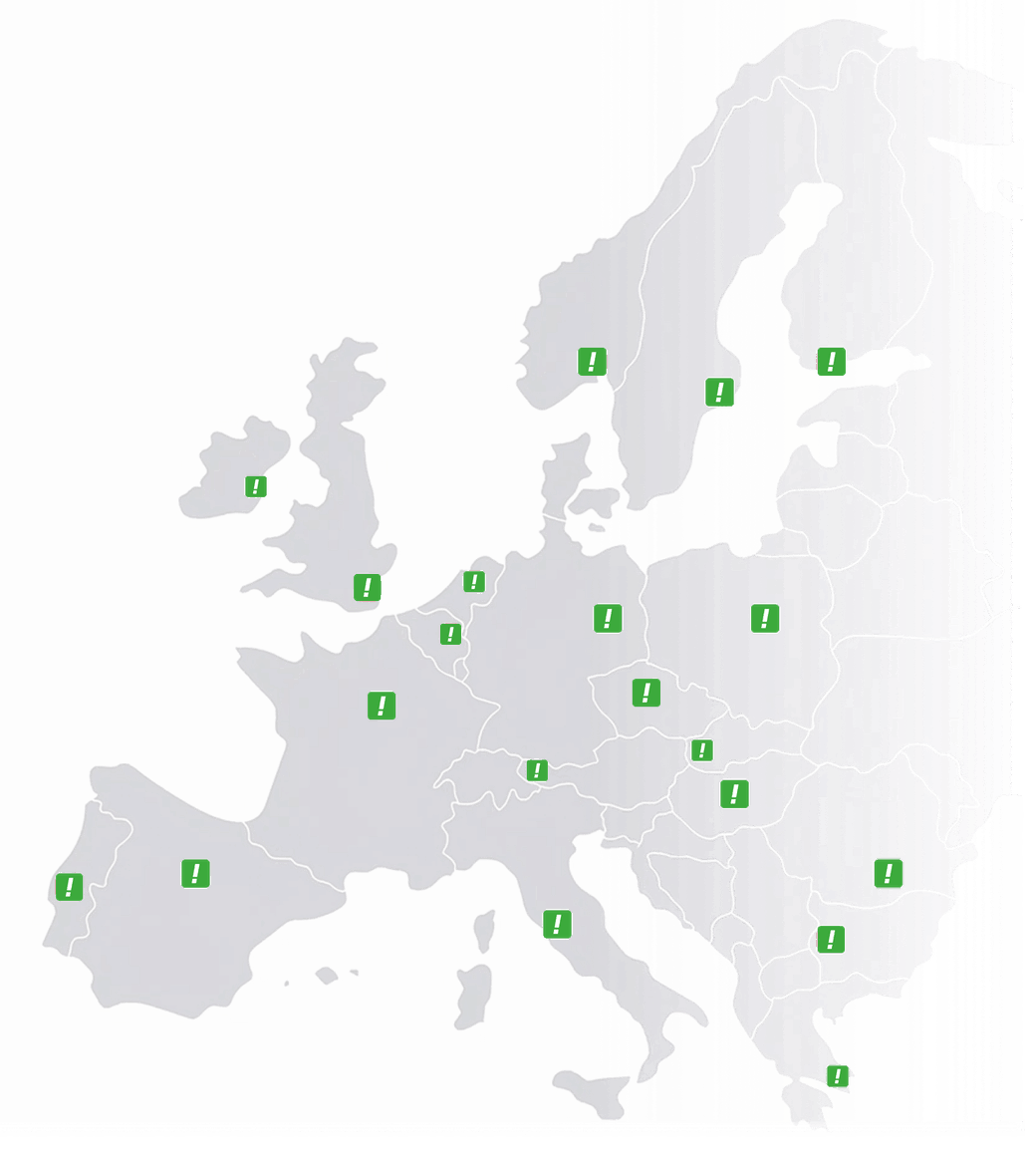
Austria
 Belgium
 France
 Germany
 Italy
 Netherlands
 Poland
 Spain
 Sweden
 United Kingdom
 United States
17 articles
The dashboard
Logging in to the dashboard, adding colleagues, switching your status and managing destinations in the address book. For admins who set up the number and for team members who answer the phone.
- Getting started with the dashboard
- Who Is the CallFactory App For? The CallFactory app is for administrators and number owners who manage the settings and endpoints of their numbers. It is coming soon.
- How Does the Dashboard Work? The dashboard gives you full control over your phone numbers, endpoints, availability and features. Here is how it works.
- How Do I Log In? Log in to your dashboard with your account name or email address. Your login details were sent to you when your account was created.
- Add users to the dashboard Add colleagues to your dashboard and give each one the admin or user role.
- Destinations and the address book
- How Do I Change an Endpoint? Change where your calls are forwarded to. Select a different endpoint in the dashboard and the change takes effect from the next call.
- Why Can't I Edit or Delete an Endpoint? An endpoint that is in use cannot be deleted and its number cannot be changed, so your number never becomes unreachable by accident.
- How Does the Address Book Work? Save frequently used endpoints in your address book so you can switch between them in one step. Shared across all your phone numbers.
- How do I add a new destination to the address book? Use the address book to keep the phone numbers your calls go to. Add a new destination with a name and a phone number.
- How Do I Change an Endpoint in the Address Book? Edit or remove endpoints in your address book. Change names and numbers, or delete unused endpoints from the dashboard.
- Set Your Opening Hours Set the days and times you are available in the dashboard, and choose what happens to calls outside your opening hours.
- More in the dashboard
- The team page On the team page you see who is available, set the order in which colleagues get calls, add your logo and switch yourself on or off.
- Call Recording View all recorded calls in your dashboard. See caller details, listen to recordings, download them and mark important calls so you can find them again.
- Using and setting up the text-to-speech assistant Type your text, choose a voice and use the recording for your welcome message, closed message, voicemail, whisper tone or call menu.
- For team members
- How Do I Change My Status? Switch between available and unavailable in the team dashboard. Your status decides whether calls are forwarded to you.
- How Do I View My Call Statistics? See how many calls you answered and how long they lasted. Choose a period in the dashboard statistics and view the figures per team member.
- Installing a softphone
- Install the Zoiper Softphone on Desktop Step-by-step guide to install and configure the Zoiper softphone on Windows or Mac to take and make calls with your phone number.
- Install the Zoiper Softphone on Mobile Step-by-step guide to install and configure the Zoiper softphone on Android or iPhone to take and make calls with your phone number.
Other categories
Looking for something else?
- Getting started 7 articles — a number abroad, call costs, starting to measure
- Setting up your number 33 articles — call menu, call queue, destinations, opening hours
- Forms and documents 1 article — documents for area code and postcode routing
- For developers 1 article — the statistics and availability APIs
- FAQs 21 short answers, grouped by topic
Still stuck?
Give us a call. We're the operator ourselves, so the person you speak to can change the setting for you straight away.